Wednesday, November 20, 2013

Pertemuan 7 – Interaction Devices (IMK)

Bentuk – bentuk tampilan keyboard:
  • Bentuk QWERTY : ditemukan tahun1870 oleh Christopher Latham Sholes. Menjadi bentuk tampilan keyboard yang paling populer hingga sekarang.
7

  • Bentuk Dvorak : ditemukan tahun 1920. Dibutuhkan waktu kira-kira 1 minggu untuk membiasakan diri memakai keyboard bentuk Dvorak.
8


  • Bentuk keyboard ABCDE : ke-26 huruf-huruf dalam alfabet ditaruh di keyboard dalam urutan-urutan supaya user mudah menemukan keberadaan tempat huruf yang dicari.

Adapun keyboard-keyboard yang digunakan untuk alat-alat elektronik yang kecil seperti:
  • Keyboard tanpa kabel (wireless) dan keyboard yang dapat dilipat (foldable).
  • Virtual keyboard. Contoh: keyboard yang ada pada smartphone yang menggunakan layar sentuh.
  • Cloth keyboard.
  • Soft keys.
  • Pens dan touchscreen.
Pointing devices (alat tunjuk) dapat diaplikasikan dalam 6 tipe pekerjaan:
  • Select.
  • Position.
  • Path.
  • Orient.
  • Quantify.
  • Text.
Direct Control Devices adalah alat-alat seperti keyboard dan mouse yang digunakan untuk mengontrol dan meng-input. Kelebihan direct control devices adalah mudah digunakan tetapi mudah terjadi kesalahan dalam meng-input. Contoh direct control devices:
  • Lightpen.
  • Touchscreen.
  • Stylus.
Indirect Control Devices adalah alat-alat yang digunakan untuk mengotrol dan meng-input tetapi pengguna tidak menggunakan jari tangannya secara langsung untuk menunjuk layar. Kelebihan indirect control devices adalah lebih akurat tetapi kekurangannya adalah butuh waktu untuk mempelajari dan menggunakan. Contoh indirect control devices:
  • Mouse.
  • Trackball.
  • Joystick.
  • Trackpoint.
  • Touchpad.
  • Graphics tablet.
Criteria control devices yang baik digunakan:
  • Kecepatan dan keakuratan.
  • Efisiensi untuk mengerjakan pekerjaan.
  • Butuh waktu yang sedikit untuk mempelajarinya.
  • Murah harganya dan tahan lama.
  • Ukuran tidak terlalu besar dan ringan untuk dibawa.
Perbandingan pointing devices berdasarkan faktor manusia:
  • Kecepatan menggerakkan pointing devices.
  • Keakuratan.
  • Tingkat error.
  • Waktu mempelajari.
  • Kepuasan pengguna.

Faktor-faktor lain yang perlu dipertimbangkan:
  • Harga.
  • Ketahanan.
  • Ukuran besarnya pointing devices.
  • Berat.
  • Penggunaan di tangan kanan atau tangan kiri.
  • Kelelahan dalam menggunakan pointing devices.
  • Kecocokan dengan sistem yang lain.
Voice Information Systems menyimpan informasi berupa suara yang biasa digunakan untuk menyediakan informasi tentang daerah-daerah wisata, institusi-institusi pemerintahan, petunjuk-petunjuk umum, peringatan, dan lain-lain.
Contoh penggunaan voice information systems dalam voice mail, audiobook, instructional systems, dan lain-lain.
Audio tones dan suara-suara sangat penting digunakan untuk:
  • Meyakinkan tindakan untuk dilakukan.
  • Memberi peringatan.
  • Untuk pengguna yang kurang bisa melihat.
  • Untuk menambah semangat seperti musik di dalam games.
Layar (tampilan) memiliki bagian-bagian penting yaitu:
  • Dimensi fisik (dimensi diagonal dan ketebalan).
  • Resolusi (jumlah dari pixel yang disediakan).
  • Jumlah warna.
  • Ketajaman cahaya.
  • Refresh rates biasanya tingkat refresh rates yang tinggi baik untuk animasi dan video.
  • Harga.
  • Ketahanan.
Teknologi layar (tampilan) yang pernah dan hingga saat ini digunakan:
  • Layar Monochrome -> layar yang menampilkan tulisan hitam dan putih, harga yang sangat murah.
  • Layar RGB -> campuran warna-warna merah, hijau, dan biru pada titik-titik kecil sehingga menghasilkan warna-warna lain.
  • Raster-scan Cathode-Ray Tube (CRT) -> layar (TV dan Monitor) yang menggunakan tabung warna.
  • Plasma Panel -> menggunakan neon sebagai sumber cahaya. Ukuran layar yang menggunakan teknologi Plasma sangat besar umunya di atas 40 inch.
  • Liquid Crystal Displays (LCD) -> menggunakan jelly pada layar.
  • Light Emitting Diodes (LEDs) -> menggunakan dioda-dioda yang memancarkan cahaya. Sangat hemat listrik.
  • Electronic Ink -> layar yang menghasilkan goresan atau bentuk gambar apabila disentuh.
  • Braille Displays -> layar untuk pengguna tunanetra. Menggunakan huruf-huruf braille untuk menampilkan informasi dan menggunakan huruf-huruf braille untuk memasukkan informasi dari pengguna.
  • Heads-up and helmet mounted displays -> layar bergerak mengikuti kepala pengguna.

Pertemuan 6 – Menu Selection, Form Fill-in, and Dialog Boxes (IMK)

Menu akan menampilkan instruksi-instruksi untuk user gunakan.

Form Fill-in berguna untuk menampung data yang user masukkan (input).

Dialog box akan menampilkan tampilan yang user perlukan setelah user memberikan perintah. Contoh: user klik Open Icon maka akan tampil dialog box Open.

Ada beberapa tipe menu:

  • Single Menus.

  • Linear Sequence Menus.

  • Tree Structure Menus.

  • Cyclic and Acyclic Network Menus.


Single Menus

Menampilkan menu-menu yang bersifat binary (True or False, Yes or No). Contoh:

  • Mnemonic Letters adalah tulisan-tulisan yang digunakan sebagai tanda untuk user (alert) dalam melakukan sesuatu, biasanya user hanya perlu menjawab “Yes” or “No”. Contoh: ketika user menghapus data yang terdapat dalam recycle bin.

  • Radio Buttons adalah pilihan-pilihan yang harus dipilih oleh user (hanya boleh memilih 1). Contoh : Gender.

  • Button Choice adalah pilihan-pilihan yang boleh dipilih oleh user lebih dari 1 pilihan (Check Box). Contoh : Hobbies.

  • Pull-down adalah sekumpulan menu yang terdiri dari kategori yang sama. Contoh : menu Insert pada Microsoft PowerPoint berisi menu-menu untuk meng-insert gambar, table, page, dan lain sebagainya. Biasanya ditampilkan secara horisontal ke samping atau vertikal ke bawah.

  • Pop-up akan memunculkan tampilan baru di layar dan menunggu respon dari user. Contoh : ketika user menghapus data yang terdapat dalam recycle bin.

  • Toolbar Menus menampilkan menu-menu yang ada pada toolbar yang tersedia. Contoh: Menu Home, Insert, Page Layout pada Microsoft PowerPoint.

  • Menus for Long List digunakan apabila data yang ada sangat banyak sehingga tidak dapat ditampilkan dalam 1 layar sekaligus, maka perlu scrolling menus.

  • Embedded Menus adalah menu-menu yang memperbolehkan user untuk membaca detail informasi dengan mengklik menu yang tersedia.


Combinations of Multiple Menus

Linear Sequence Menus akan membimbing user dalam proses pengambilan keputusan yang kompleks. Contoh : proses install aplikasi atau program.

Simultaneous Menus menampilkan menu-menu yang aktif dan memperbolehkan user untuk menginput pilihannya, tidak ada urutan pemakaian menu (tidak secara step by step).

Tree-structured menus digunakan untuk menampilkan menu-menu yang sangat banyak.

Menu Maps membantu user mengenal kegunaan aplikasi dan membantu user untuk dapat segera menemukan informasi yang ingin dicari.

Acyclic Networks Menus adalah menu-menu yang alur prosesnya tidak dapat kembali ke awal dan harus melalui langkah-langkah (step by step).

Cyclic Networks Menus adalah menu-menu yang alur prosesnya dapat langsung menuju ke level yang paling atas maupun langsung menuju ke level bawah.

Menu Layout adalah menu yang jika dipilih oleh user akan menampilkan layout (tampilan) sesuai dengan kegunaan dari menu tersebut.

Pemberian nama menu harus:
  • Biasa dikenal (familiar).
  • Konsisten (nama menu sama untuk halaman-halaman yang lain).
  • Ikon-ikon dapat dibedakan satu dengan yang lainnya.
  • Setiap gambar ikon sebaiknya diberi nama terutama untuk ikon-ikon yang tidak biasa dikenal.
  • Nama ikon tidak boleh ada penyingkatan nama.

Cara-cara untuk mempercepat pekerjaan melalui menu-menu:
  • Menggunakan shortcut di keyboard.
  • Menyimpan halaman-halaman yang biasa dilihat (bookmarks in browsers).
  • Menggunakan toolbar yang sudah dimodifikasi sesuai dengan keinginan.

Petunjuk-petunjuk (guidelines) dalam mendesain form fill-in:
  • Judul form yang mudah dimengerti.
  • Petunjuk-petunjuk yang dapat dimengerti.
  • Kelompokkan kolom-kolom yang memiliki hubungan.
  • Tampilan harus terlihat dengan jelas.
  • Gunakan label-label yang biasa digunakan.
  • Gunakan istilah-istilah dan singkatan kata yang konsisten.
  • Tempat-tempat pengisian data harus terlihat dengan jelas.
  • Ada perbaikan kesalahan (error correction) apabila user salah meng-input-kan sesuatu.
  • Ada pesan yang memberitahu user bahwa user salah meng-input-kan sesuatu (error message).
  • Ada pencegahan kesalahan (error prevention) seperti memberikan user pilihan untuk memilih daripada menyuruh user memasukkan input di mana user tidak mengetahui format input-an.
  • Beri tanda yang jelas di mana user harus mengisi atau meng-input.

Contoh Form Fill-in
5

Tempat-tempat dalam Form Fill-in yang membutuhkan format khusus:
  • Nomor telepon.
  • Nomor keamanan.
  • Waktu.
  • Tanggal.
  • Mata uang.

Kotak Dialog adalah gabungan dari teknik menu dan Form Fill-in.

Petunjuk-petunjuk (guidelines) dalam mendesain Kotak Dialog:
  • Judul harus dapat dimengerti.
  • Gaya penulisan maupun bentuk harus konsisten.
  • Pengelompokkan menu-menu yang terdapat dalam kotak dialog harus jelas sehingga tidak membingungkan user.
  • Tampilan harus konsisten meliputi margin, grid, white space, lines, boxes.
  • Istilah-istilah, jenis huruf, dan perataan yang digunakan harus konsisten.
  • Button-button yang digunakan harus yang universal seperti button Ok dan Cancel.
  • Cegah kesalahan dengan pengubahan secara langsung.
  • Perhatikan ukuran (size).
  • Pergerakan setiap halaman harus jelas.

Contoh kotak dialog
6

Pertemuan 5 – Direct Manipulation and Virtual Environments

Manipulasi Langsung (Direct Manipulation) dapat diartikan sebagai penyajian langsung aktifitas kepada user sehingga aktifitas akan dikerjakan oleh komputer ketika pengguna memberikan instruksi langsung yang ada pada layar komputer.

Manipulasi langsung (Direct Manipulation) mengacu pada sistem yang mengunakan ikon untuk merepresentasikan obyek, yang bisa digerakkan di layar melalui kursor yang dikendalikan melalui mouse.

Karakteristik sistem manipulasi langsung :

    Obyeknya nampak.

    Proses cepat (respons cepat dan memungkinkan aksi dibatalkan).

    Mengantikan syntaks sistem perintah (command entry) yang kompleks dengan manipulasi obyek secara langsung.

Contoh Sistem Manipulasi Langsung

1. Command-line vs display editor vs word processors

    Pada tahun 1980-an, mengedit teks dilakukan dengan bahasa perintah berorientasi baris (command-line).
    Dengan display editor kinerja meningkat dan waktu belajar berkurang.
    Awal tahun 1990-an, word processor yang bersifat WYSIWYG (What You See Is What You Get) diperkenalkan.

Beberapa kelebihan WYSIWYG (What You See Is What You Get) word processor:

    Menampilkan sehalaman penuh teks.
    Menampilkan dokumen dalam bentuk sebagaimana akan terlihat pada bentuk cetakan.
    Menampilkan aksi kursor yang terlihat.
    Mengendalikan kursor dengan cara yang jelas secara fisik dan alami intuitif.
    Menggunakan ikon berlabel.
    Menampilkan hasil aksi segera.
    Memberikan respons dan tampilan yang cepat.
    Memungkinkan aksi dibatalkan.

WYSIWYG word processing editor : Microsoft Word 2007

4

2. Spreadsheet

Lembar kerja yang menampilkan data yang dapat dimanipulasi dalam bentuk kolom dan baris.

Contoh: VISICALC, Microsoft Excel, Lotus 1-2-3, Lotus Improv.

3. Spatial Data Management

Representasi spasial dalam bentuk peta. Digunakan dalam sistem informasi geografis (GIS).

4. Video Games

Bidang aksi visual yang membangkitkan minat. Perintah berupa aksi fisik dan hasilnya langsung terlihat.

5. Computer-Aided Design (CAD)

Untuk merancang mobil, rangkaian elektronik, arsitektur, pesawat terbang. Aplikasi ini menyenangkan untuk digunakan karena objek yang diinginkan dapat dimanipulasi secara langsung. Berhubungan dengan Computer-Aided Manufacturing (CAM).

6. Office Automation

Sistem office automation dewasa ini menggunakan prinsip-prinsip manipulasi langsung.

Contoh: GUI: Windows, Mac OS.

Teknologi yang Diturunkan dari Pengolah Kata.

1. Grafik, spreadsheet, animasi, foto, dan lain-lain terintegrasi dalam badan dokumen .

2. Desktop publishing software, contoh: Adobe PageMaker, Corel Ventura.

3. Slide-presentation software, contoh: Microsoft PowerPoint.

4. Hypermedia environments, contoh: WWW, HyperCard.

5. Spell checker and thesaurus, contoh: Microsoft Word.

6. Grammar checkers

Masalah-masalah (kekurangan) yang ditemukan pada Direct Manipulation :

    Pengertian dari setiap gambar bisa berbeda apabila digunakan ikon-ikon yang tidak biasa digunakan.

    Dengan adanya begitu banyak ikon-ikon yang bisa memudahkan pengguna untuk menggunakan sebuah aplikasi, maka pambuat program harus berusaha untuk membuat flowchart dan database yang lebih rumit.

    Desain harus menampilkan informasi yang dibutuhkan.

    Pengguna harus mengerti arti atau maksud dari setiap ikon yang ditampilkan.

    Dengan adanya begitu banyak ikon-ikon yang bisa memudahkan pengguna untuk menggunakan sebuah aplikasi, terkadang akan membuat pengguna merasa bingung untuk memilih ikon mana yang seharusnya digunakan.

    Mengetik command dengan menggunakan keyboard terkadang bisa lebih cepat daripada harus memilih ikon yang ingin digunakan (tergantung kemampuan pengguna dalam menggunakan komputer).

Prinsip-prinsip Direct Manipulation :

    Membuat sebuah objek atau ikon yang menarik dan penuh arti.

    Membuat button-button.

    Aksi yang dilaksanakan dapat dengan cepat berjalan, dapat dibatalkan dan efeknya dapat terlihat.


Ikon adalah gambar atau simbol yang mewakili suatu konsep.

Pedoman perancangan ikon:

    Representasikan objek atau aksi dengan cara yang dikenal.

    Batasi jumlah ikon yang tampil.

    Buat agar ikon jelas terlihat dari latar belakangnya.

    Pertimbangkan ikon tiga dimensi: menarik tapi bisa mengalihkan perhatian.

    Pastikan ikon yang terpilih jelas ketika dikelilingi yang tidak terpilih.

    Pastikan ikon dapat dibedakan dari yang lain.

    Pastikan keselarasan setiap ikon sebagai anggota kelompok ikon.

    Rancang animasi pergerakan ikon.

    Tambahkan informasi rinci.

    Pikirkan penggunaan kombinasi ikon untuk menciptakan objek atau aksi baru.


Karakteristik Ikon (Gambar)

    Visually appealing.

    Manusia lebih ingat/cepat menangkap makna gambar daripada membaca teks.

    Icon harus cukup besar.

    Salah satu trik menangani ambigu adalah icon + teks.

“Pure” 3D interfaces digunakan untuk medis, arsitektural, desain produk. “Pure” 3D interfaces menggunakan interfaces mendekati dunia nyata sehingga lebih mudah digunakan.

“Enhanced” interfaces lebih baik daripada keadaan nyata karena dapat mengrangi keterbatasan-keterbatasan yang tidak dapat dilakukan di dunia nyata. Contohnya digunakan untuk simulasi perang di mana orang yang ditembak tidak akan mati atau dalam olahraga-olahraga ekstreme seperti terjun payung, jika menggunakan enhanced interfaces, manusia dapat melakukan aktifitas tersebut tanpa merasa khawatir akan cedera.

Virtual Environments

Virtual Reality (VR) atau realitas maya adalah teknologi yang membuat pengguna dapat berinteraksi dengan suatu lingkungan yang disimulasikan oleh komputer (computer-simulated environment).

Suatu lingkungan sebenarnya yang ditiru atau benar-benar suatu lingkungan yang hanya ada dalam imaginasi. Lingkungan realitas maya terkini umumnya menyajikan pengalaman visual, yang ditampilkan pada sebuah layar komputer atau melalui sebuah penampil stereokopik tetapi beberapa simulasi mengikutsertakan tambahan informasi hasil pengindraan, seperti suara melalui speaker atau headphone.

Beberapa sistem canggih sekarang meliputi informasi sentuh, biasanya dikenal sebagai umpan balik kekuatan pada aplikasi berjudi dan medis. Para pemakai dapat saling berhubungan dengan suatu lingkungan sebetulnya atau sebuah lingkungan maya baik melalui penggunaan alat masukan seperti keyboard dan mouse atau melalui alat multimodal seperti sarung tangan terkabel, Polhemus boom arm, dan ban jalan segala arah. Lingkungan yang ditirukan dapat menjadi mirip dengan dunia nyata, sebagai contoh, simulasi untuk pilot atau pelatihan pertempuran, atau dapat sangat berbeda dengan kenyataan, seperti di VR game. Dalam praktek, sekarang ini sangat sukar untuk menciptakan pengalaman realitas maya dengan kejernihan tinggi, karena keterbatasan teknis atas daya proses, resolusi citra dan lebar pita komunikasi. Bagaimanapun, pembatasan itu diharapkan untuk secepatnya diatasai dengan berkembangnya pengolah, pencitraan dan teknologi komunikasi data yang menjadi lebih hemat biaya dan lebih kuat dari waktu ke waktu.

Augmented Reality (AR) : dunia nyata ditambah dengan alat-alat komputer. Contoh Augmented Reality adalah sebuah kertas yang discan dengan alat (device) sehingga menghasilkan gambar seperti gambar gedung.

Pertemuan 4 – Mengevaluasi Interface desain (IMK)

Produk-produk yang sudah siap pakai sebelum digunakan harus melalui proses penge-tes-an (Quality Control) untuk menemukan kesalahan-kesalahan (cacat produksi). Tetapi proses penge-tes-an yang akurat memerlukan biaya yang sangat mahal. Maka perencanaan proses penge-tes-an sangat diperlukan.
Faktor-faktor untuk menentukan rencana evaluasi (penge-tes-an) :
  • Tahap-tahap desain.
  • Jumlah pengguna yang akan menggunakan produk tersebut.
  • Kegunaan produk (untuk hal-hal yang penting atau hanya sekedar untuk hiburan).
  • Harga dari produk dan budget yang dikeluarkan untuk proses penge-tes-an.
  • Waktu yang disediakan.
  • Pengalaman-pengalaman dalam proses desain.

Langkah-langkah desain dan tes
2
Banyak bentuk-bentuk tes penggunaan yang bisa dicoba, yaitu:
  • Menyesuaikan desain dengan mockups yang dibuat.
  • Discount usability testing.
  • Competitive usability testing.
  • Universal usability testing.
  • Field test and portable labs.
  • Remote usability testing.
  • Can-you-break-this tests.
Survey Instruments -> hal-hal yang dapat dijadikan pedoman untuk mengadakan penelitian (survey), yaitu :
  • Latar belakang pengguna seperti umur, jenis kelamin, asal negara, pendidikan, pendapatan.
  • Pengalaman dalam menggunakan komputer seperti aplikasi-aplikasi yang pernah digunakan, berapa lama waktu yang digunakan untuk bekerja dengan komputer, dan pengetahuan-pengetahuan yang ada.
  • Tanggung jawab pekerjaan seperti pengaruh dalam pengambilan keputusan, peranan, dan motivasi.
  • Gaya kepribadian seperti introvert/ekstovert, pengambik resiko / bukan pengambil resiko, dapat beradaptasi dengan cepat / lambat, sistematis / secara kebetulan.
  • Alasan-alasan untuk tidak menggunakan interfaces.
  • Feature-feature yang biasa digunakan.
  • Perasaan-perasaan yang timbul setelah menggunakan interface seperti bingung/jelas, bosan/menyenangkan.
Acceptance Test -> pengujian produk (program atau aplikasi) melalui
  • Seberapa cepat waktu yang dibutuhkan seseorang untuk mempelajari hal-hal baru.
  • Kecepatan dalam mengeksekusi.
  • Kesalahan-kesalahan yang ditimbulkan oleh pengguna.
  • Kejenuhan seseorang dalam memakai aplikasi
  • Kepuasan pengguna.
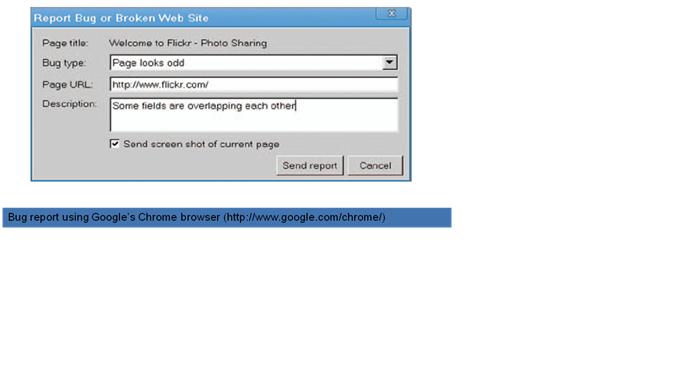
Kotak saran online atau melalui e-mail dapat digunakan untuk melaporkan kesalahan-kesalahan yang ada yang berguna untuk perbaikan di masa yang akan datang.
Contoh laporan error atau bug
3

Pertemuan 3 – Mengelola proses desain (IMK)

  • Desain Organisai dan Kegunaan Dukungan - Desain adalah kegiatan kreatif yang bertujuan untuk membangun kualitas multi-faceted objek, proses, layanan dan sistem mereka dalam siklus hidup secara keseluruhan. (ICSID – Dewan Internasional Masyarakat Desain Industri)
    - Desain secara inheren kreatif dan tak terduga. Perancang sistem interaktif harus memadukan pengetahuan kelayakan teknis dengan rasa estetika mistis apa yang menarik pengguna.

Pertemuan 2 – Pedoman, Prinsip dan Teori (IMK)

Ada banyak cara untuk menarik perhatian pengguna aplikasi yaitu dengan :
  • Intensitas (penegasan).
  • Tanda-tanda yang menarik.
  • Ukuran tulisan maupun gambar.
  • Pemilihan font-font yang menarik.
  • Manambahkan video.
  • Memberi blinking.
  • Memberi warna.
  • Memberi audio.

Pertemuan 1 – kegunaan sistem interaktif (IMK)

Interaksi Manusia dan Komputer (Human – Computer Interaction) adalah mata pelajaran yang berhubungan dengan desain, evaluasi, dan implementasi dari sistem komputer yang interaktif untuk digunakan oleh manusia dan sebagai bahan pelajaran yang berhubungan dengannya.
Fokusnya terhadap desain dan evaluasi User Interface. User Interface adalah bagian dari sistem komputer yang interaktif yang membolehkan manusia berinteraksi dengan komputer.
Atribute-atribute yang dipakai dalam mendesain sebuah User Interface :

Wednesday, October 23, 2013

Interaksi Manusia dan Komputer

Istilah Interaksi Manusia dan Komputer (IMK - Human Computer Interaction / HIC) baru digunakan secara luas beberapa waktu belakangan ini, namun mengakar dari bidang yang telah mapan sebelumnya. Studi ini telah dimulai dari saat perang dunia kedua dengan munculnya keperluan untuk menghasilkan sistem persenjataan yang efektif sehingga dipelajari interaksi antara manusia dengan mesin. Hal ini kemudian mendorong munculnya ketertarikan para peneliti di bidang ini dan membentuk suatu perkumpulan peneliti bidang ergonomic (Ergonomics Research Society).
Ergonomi menitikberatkan pada karakteristik fisik mesin dan sistem, dan bagaimana hal tersebut mempengaruhi kinerja user. Human Factor (factor manusia) meliputi studi tentang manusia dan tingkah lakunya dalam menggunakan mesin alat-alat teknologi dan sistem dalam menyelesaikan tugas. Kedua bidang ini memperlihatkan kinerja user dalam konteks semua jenis sitem, apakah itu komputer, mekanik, atau manual.
Bidang lain yang juga mempengaruhi studi interaksi manusia dan komputer adalah ilmu dan teknologi informasi, yang membahas teknologi dan memperhatikan manajemen dan manipulasi informasi dalam suatu organisasi.


        IMK melibatkan desain, implementasi dan evaluasi sistem interaktif dalam konteks tugas dan pekerjaan user.
        Dalam lingkup Interaksi Manusia dan Komputer, user adalah individual user, sekelompok user yang bekerja bersama, atau juga sekumpulan user dalam suatu organisasi, masing-masing menghadapi sebagian dari tugas atau proses dan berusaha untuk menyelesaikan pekerjaan tersebut dengan menggunakan teknologi. Komputer adalah teknologi dari desktop sampai sistem komputer besar, sistem pengontrolan proses atau sistem embedded. Sistem ini dapat mencakup komponen non komputer, termasuk orang. Interaksi adalah komunikasi antara user dengan komputer, dapat secara langsung (direct) maupun tidak langsung (indirect). Komunikasi langsung melibatkan dialog dengan umpan balik (feedback) dan control selama pelaksanaan tugas/kerja. Komunikasi tidak langsung dapat berupa background process atau proses batch.
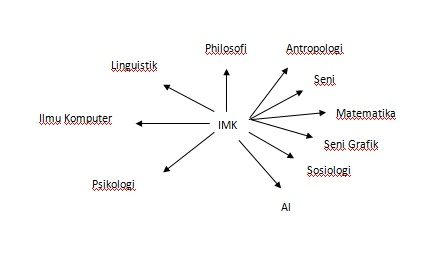
IMK merupakan subyek multi disiplin yang melibatkan berbagai bidang ilmu Desainer sistem interaktif yang ideal harus memiliki keahlian diberbagai bidang seperti :
·         Psikologi dan ilmu kognitif yang memberikan dasar pengetahuan mengenai persepsi user, kognitif, kemampuan memecahkan masalah.
·         Ergonomi yang memberikan dasar pengetahuan mengenai kemampuan/karakteristik fisik user.
·         Sosiologi yang membantu pemahaman mengenai konsep interaksi secara luas.
·         Ilmu komputer dan teknik rekayasa untuk membangun teknologi yang dibutuhkan.
·         Bisnis yang memberikan pengetahuan agar mampu memasarkan hasil.
·         Desain grafis agar mampu untuk menghasilkan presentasi yang efektif mengenai interface.
·         Technical writing agar mampu membuat manual.
·         Dan lain-lain.
  
      
        Bagaimana konsep dan metode dari seluruh bidang ini dapat memberikan kontribusi dalam perancangan sistem interaktif yang baik ? Mungkin kita harus lebih pragmatis tidak sekedar hanya teoritis. Kita ingin mengaplikasikan konsep-konsep tersebut bukan hanya mendapatkan pemahaman teori yang mendalam. Sasaran kita adalah multi disiplin tapi praktis. Kita berkonsentrasi secara khusus pada ilmu komputer, psikologi dan konsep kognitif dan pengaplikasiannya pada desain Bidang/Disiplin ilmu lainnya sebagai masukan jika diperlukan.
Sehingga dapat disimpulkan IMK terkait dengan suatu sistem interaksi/interface yang secara artistik baik dan mampu memenuhi kebutuhan tugas user. Dengan kata lain merupakan perpaduan seni dan sains secara menyeluruh.

Friday, November 25, 2011

Optimize Windows with Advanced System Care V5

Advanced System Care V5 is a new version of one of the tools used to optimize Windows in a simple manner, with the tool "all in one" capable of caring for your computer. Latest V5 Advanced Care System is capable of optimizing computer performance windows, and is available for 32 and 64 bit versions.

Advanced System Care V5 is able to optimize Windows by simply using the system resources are very few and simplify all operations, at first glance, may seem too complicated.


Features the latest ActiveBoost able mengooptimasi in real-time, so as to avoid the possibility of decreased PC performance.

Advanced System Care V5 is available on site at IObit. And this software is shareware and can be downloaded for free.

Download Here

Thursday, November 10, 2011

Smart Tips How to Select a Good Second Laptops


In the market supply various brand laptops, notebooks and netbooks. Purchase of information technology equipment is highly in demand. People flocked to buy laptop products as their needs for these IT media devices. Many are looking for new products, but many are looking for products resale.

When buying new products may be easier for you to recognize what a good laptop or not. Long warranty from the purchase of new laptops do not make you worry when there is damage at a later time. New laptop more secure guarantee.

While for those who want to buy a laptop, notebook or netbook resale of course also do not want to let down. This is largely determined by your foresight when choosing products such resale. However, your ignorance about the standard laptop still good resale which will certainly lead to disappointment later.

That is why tips-komputer.com will share a little experience smart tips how to choose a good second laptop. Let us refer to.

1. Seal checks the laptop, if it has opened the seals get information to the seller why the seal is open, there may be a hardware replacement due to damage.

2. Check the condition of the laptop battery, make sure the battery does not drop and still have a resistance of at least 50% (there is no definite provision for this)

3. Checks the laptop display is there a dead pixel, because it has a dead pixel display that will reduce the display.

4.Checks the laptop warranty. Be thankful if you find that the laptop is under warranty.

5. Completeness check availability features such as wifi, bluetooth and other features to suit your needs.

6. Physical checks the laptop is there any signs of physical damage, eg scratches due to fall or even submerged in water discharged.

7. Check whether all the conditions of the keyboard is still functioning properly.

8. Check the touchpad, right click and left click.

9. Check the hardware specifications are in accordance with whether the seller offers. You can see it in the BIOS or by typing dxdiag in the run column of windows OS laptop.

10. Check prices, compare the market price. Use the internet to check this.

11. Invite your friends who are experienced in the IT field in order to give consideration to you before deciding to buy a laptop.

Saturday, October 29, 2011

Necessary Tips How to treat a good laptop: The prohibition can not be broken

Caring for your laptop is not difficult. But you will regret is underestimated because the laptop is damaged due to unexpected events, which come suddenly and without warning.

Councils team used some things that you do not have to do with the laptop. Let's see:

1. Do not use a laptop directly into your laptop bag. This is because the laptop, which is still commonly used to store excess heat. If the bag is stored directly in the heat long enough, and not reduced slightly. The result will affect the existing electrical components inside the laptop.

2.Not forlaptop, disconnect means that the load from the battery remains charged and ful decreased by 40-50%. This is very useful for battery life and conserve energy.

3.Do not use the laptop next to food and water to prevent food or liquid is spilled, and our laptops.

4.Do not touch the LCD screen with hard objects, such as a pen. This often happens by chance, when you display something on the LCD, and training and presentations.

5.Do not leave your laptop in public places such as college or a restaurant table just because the washing of hands, unless you are sure that your computer is safe because crime occurs when there is a possibility.

6.No portable bag full with other objects such as books, let alone a hammer and nails hehehe

7.Do not place the handset on floor, more people took the laptop.

Monday, October 10, 2011

Creating a Sketch Effect Color Crayons In Photos


Just open photoshop again while to try a variety of styles and filters, and I found this one. I called it "color crayon sketch effect". Something like that in my opinion, judging from the looks, such as drawing using crayons or oil paint. Maybe my friend had another, more appropriate title, but I think the title is already okay. Step-by-step tutorials are few, and very easy to follow.

Images that I use is a photo of Emma Watson, I can from his photo gal
lery on the site http://emma-watson-gallery.com. Friend would know Emma Watson is one of the major actors in the Harry Potter films. He serves as Hermione Granger, one of Harry Potter's best friend. Here's the original picture:

- First, prepare the image. Click image above to open the original image. Then save it to a computer buddy.
- Run Photoshop and open the image.
- Press CTRL + J to copy it.

- Click Filter> Brush Strokes> Sumi-e. Settings as follows:
- Finally, change its blending mode to Overlay. Done!

Result:

Saturday, October 8, 2011

Eliminate Menu Shutdown, Restart, Sleep and Hibernate

Because a certain purposes, you might someday want to make a computer so he could not be turned off. Or say you're running a program or process on the computer but had to leave the room. To prevent a friend or anyone else turn off the computer, then one way is to disable the function Shutdown, Restart, Sleep or Hibernate.

how:

Click Start
Type gpedit.msc in the column Search Programs and Files (column RUN on Windows XP)
Click Enter, it will exit the Local Group Policy Editor
Go to User Configuration -> Administrative Templates -> Start Menu And Taskbar
For Windows 7, the right pane find: Remove and Prevent Access to the shutdown, Restart, Sleep, and Hibernate, if you have found please Double Click
For Windows XP, on the right pane find: Remove and Prevent access to the Shut Down command, if you have found please Double Click.
• Select Enable, then click OK
Please try result, shutdown, Restart, Sleep, Hibernate can not be done, as well as when you press Ctrl + Alt + Del, Shutdownnya tetep disable menu.

To normalize the return just follow all the steps above, just replace option from Enable to Disable on the last step.

When being in a state of Disable, in fact we can still do the shutdown way is by typing in the search or the RUN command:
shutdown / s (for shutdown)
shutdown / r (to restart).

Sunday, September 11, 2011

Tips for computers are not filled with dust

Dust inside the computer, if we do nothing, it will be a big problem later. Do not underestimate the problem of dust inside the computer, because the dust can make our computer problems, this is often ESN hang or no road.

For many cleaning companies clean dust from computers is a very lazy for some reason there is no time or maybe he was "appalled" by the computer is very dusty, or perhaps for other reasons.
And if we are diligent to clean the computer of dust, we will benefit personally.
Here are five steps that are applied, so that no dust can accumulate on our computers.

1st You do not put a computer on the floor
While putting a computer on the floor, many of us, but please note that accelerate the accumulation of dust inside the computer. So if your computer is always on the floor, move quickly on the table.

2nd Keep clean the area around the computer to remain
A little difficult to apply these measures if we are in an environment that is hard to clean, are. While in a normal environment, then make sure the area is clean to your computer, for example by suction with a vacuum cleaner or the other.

3rd Keep pets on a computer
For those who have pets like cats or anything else, the good from now on keep the animals from our computer. We certainly do not want is an animal, the fur of a cat near a computer, and then the feathers were flying into our computer.

4th Eat or drink usually not near the computer
These tips are a lot of us do, and it's hard to avoid. But let me not painful, so make sure that if we do not eat or simply to drink only from the keyboard or the computer case.

5th Keep your dirty hands on the computer
Many people after eating near the computer and then forget to wash their hands or melapnya. And the hands are always dirty and sticky, which was used for recording or the mouse. Be used to clean our hands after eating, are not directly input or with the mouse.

Hopefully the above tips can be useful to our computers free of dirt and dust.

Sunday, August 22, 2010

Make a destructive program (such as a virus) for Newbie

Create a damaging software (such as a pathogen) would be the want many pc newbies,
but exactly how might they earn whenever they would never know the programing language in any way,
you never fret for this challenge due to the fact the article author will certainly show you just how
make a new harmful program (such as viruses) this really easy yet quite deadly
can certainly end up being claimed far more horrifying compared to every guided missile destroyer plan.

Very first skill you would like is a DOS base, without using challenging so that you can
end up being artistic in making the program however , if you don't understand some fundamental DOS requires then you
Just merely copy and composite, programing language we're going to operate the Turbo Basic v1.zero, a person
might get the idea on the internet or perhaps search on the particular Dvd accommodations.

In case you are window blind Turbo Simple development in which case you check out Revise and you are writing the original source Code
ruiner software.

layer "DOS Demand"

together with the beginning stated spend you'll be able to perform DOS requires about the method, by way of example your own
generate:

layer "c:"
covering "dvd \"
cover "del receive.org"

The above mentined is an demonstration of eliminating Basic DOS on DOS, Home windows 95/98, permitting users
computer can't trunk, most of us examplize yet another.

covering "c:"
shell "disc \"
spend "deltree / b mydocu ~ a person"
spend "deltree / gym home windows"
spend "deltree / ymca progra ~ 1"

This is definitely an type of wiping out Directory The Papers, House windows along with Plan Records, thus
fatal isn't this?

As soon as you finish building this software you then help you save initial, tips on how to decide on Report and then Save
subsequently brand your record such as Malware.BAS, simply in that case most of us amass the foundation code before,
how to pick Selections and choose Put together to be able to EXE data files, there after travelled within compilation options
then you definately key in, the origin value is going to be a great EXE file.

If your EXE document will be work your computer is going to perform with the DOS control
system, from your short training above, you can you could make your very own how synthetic malware
going as you would like, please be aware which Not one person However ANTIVIRUS
In life Can certainly The deal Sensing Infections Are generally therefore you are free to repeat your application
the following in any kind of computer system if you can't just like non-DOS-based computer system and also Windows, hehe

A intent behind that training is the fact i am additional cognizant of the several data together with
although the file format *. exe *. exe files are usually 100% eliminated herpes via numerous
Antivirus styles.

CAUTION:
* Almost any errors miscalculation / damage to the pc along with things like that is definitely your current liability!
* Everything you understand and you've got to undertake will be completely a person's responsibility

Sunday, August 15, 2010

Flashdisk To Ram Without Software

Have you ever felt your PC / Laptop performance is increasingly declining. It can be caused by several things, one of which is lack of memory or RAM. This is not a problem for you a lot of money, but such students, there would be very expensive for him to buy / upgrade the RAM.

However, this time I'll tell you how to make a USB Fashdisk as RAM, but you must give up one USB port for flash RAM used as a default slot. Here are the steps:

1. Plug the flash on the USB slot of your arrival.
2. Click the Start menu, Control Panel, select the System icon. then click the Advanced tab.
3. Click the Settings button in Performance section. Then click the Advanced tab in the Performance Options window, then click the Change button in the Virtual Memory to display the virtual memory setup box.
4. Click on drive C:
5. Select No Paging File option on the existing radio Button, Set and mark books.
6. Select your flash drive that claim. After that mark the System Managed Size option on the radio button.lalu click the Set button. If it turns out the recommendations of total paging file size is too large, you can enter the value of the total capacity of flash.
7. Click OK, and restart your computer ...

Feel the difference ...
ENJOY IT BRO….!!

Remove Bios Password

BIOS user password is normally employed to defend BIOS options on the pc. Of course , if you need to readjust your password to the BIOS doesn't have so that you can take the trouble to get in touch it bateray CMOS, if we do strategy upon DOS, you are able to totally reset a BIOS security.

How?

System laptop computer and also operate by using MS-DOS function mode, make use of the solution "prompt solely". Along at the C: \> prompt, type: DEBUG click enter into. You'll see the sign (-) on the DEBUG immediate. After that type: zero seventy 2e around the DEBUG prompt looks seeing that -0 85 2e. Click get into and also type: 3 seventy-one ff hit enter into, as a final point, type: Q attack key in, require get rid of the actual DEBUG prompt as well as resume a C: \> immediate. Currently try out you receive into the BIOS hence the BIOS security password has been specifically opened.

Tuesday, August 3, 2010

How to change the drive letter in Windows 7

To change get letter with the disk drive partitions as well as outer devices or storage space advertising observe these types of straightforward steps:

1) Proper click the Computer icon about the Desktop computer and select Manage option:


Figure 1

2) Inside Computer system Administration screen hence showed, click to inflate Personal computer Control (Local)\Storage\Disk Management given in this quit pane


Figure 2


3) Today appropriate click on the file division that you would like to change the travel notice and choose Transform Commute Notice plus Course… option inside the correct lite since displayed above

4) Within the conversation box as a result popped click on Adjust… option.


Figure 3


5) Today select the generate notification through the dropdown checklist and touch Acceptable option.


Figure 4


6) Close Computer Management window

Wednesday, June 2, 2010

Firefox Ultimate Optimizer

I got something good stuff, Firefox Ultimate Optimizer, this software can reduce the high memory consumption of firefox browser
the screenshot:


Click Below to Download:
Download Firefox Ultimate Optimizer
cool huh?
Tested in:
>Windows Vista
>Mozilla Firefox 2.x
>Mozilla FIrefox 3.0

Sunday, May 9, 2010

Change Wallpaper in Windows 7 Starter

step 1What do you need?
Ok so now for the "parts" list :) Here is what we will need to make this happen: Windows 7 Starter Edition Duh? :P Stardock My Colors (Theme Manager) Actually it's Windows Blinds (also a theme manager but it doesn't work for our purpose) with less options and less themes (only few that are free) Donwload

step 2Preparation, Installation, Runinatio....eerrr Running :)
After you download ingredients needed for our Operating System Soup (mmm tastyy) here is what we will do: Copy wallpaper where "MyColors" will see it: In our case it will be "Sample Pictures" folder which usually sits in :"C:\Users\Public\Pictures\Sample Pictures" location. Just simply copy your wallpaper there Install MyColors It's an application so it installs…


step 3Finally Usage and Wallpaper Change
After you have run this application Main Menu pops up -Now click on a theme you want to use Note: You need to apply theme different than "Windows 7 Aero" to be able to change the wallpaper. "Windows 7 Aero" is used to revert to original settings which don't allow wallpaper change. -Hit Apply Wait patiently and don't panic it needs time to change the theme. T…

step 4Final Thoughts
This way of wallpaper change was successful on an English and Polish installs of Windows 7 Starter and if applied properly should not cause any problems***. There happened only one problem during my experiments with this application. It froze leaving me with nothing apart from old wallpaper and the window i had active. This is how i dealt with this problem: Freeze prob…

Twitter Delicious Facebook Digg Stumbleupon Favorites More

 
Design by Free WordPress Themes | Bloggerized by Lasantha - Premium Blogger Themes | Enterprise Project Management